



This section is currently being updated, some information may no longer be relevant. Please be patient.
How to create an account with busylel.ie
Returning users will be asked to sign in.
New users will need to provide personal details to create an account with busylel.ie.
Just click on the "Log in” button in the top right corner of the web page.
You will then be taken to a sign up page where you need to fill in required details.

After filling in your details we will send a confirmation email to the email address you have provided. To activate your busylel Account you will need to open the confirmation email and click on the link provided.
Once you have done this your account on busylel.ie will be activated.
Follow the instruction below:
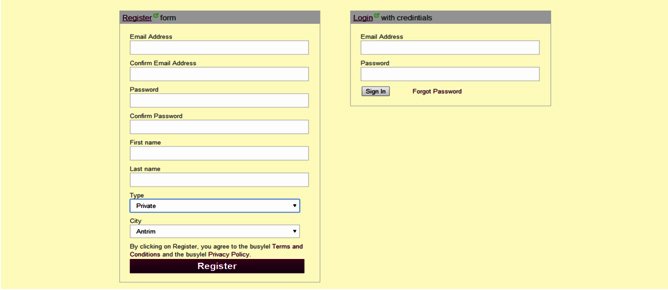
When you click here you can either sign in or sign up for an account with us.
We require a few details of you to register your account with us.
Here are some tips that might help you. You should have a valid email address.
Make sure your email ID was not previously registered with us (It will be invalid if you use your email to create two accounts)
Your password must be at least 5 characters long and is case sensitive.
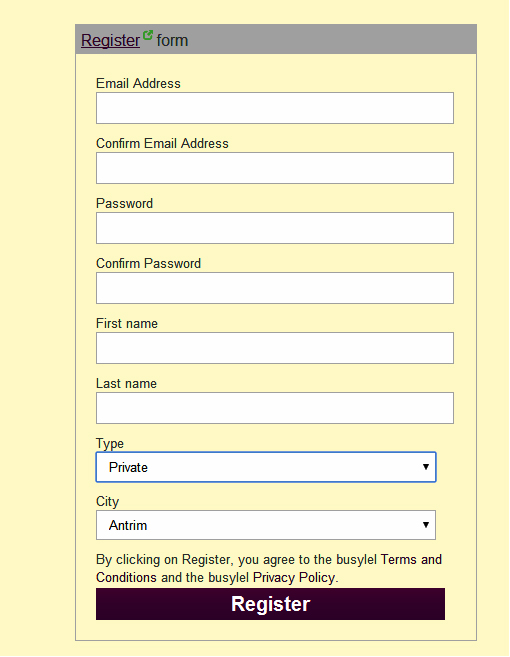
New users will need to provide personal details to create an account with busylel.ie.
Just click on the "Log in” button in the top right corner of the web page.
You will then be taken to a sign up page where you need to fill in required details.
After filling in your details we will send a confirmation email to the email address you have provided. To activate your busylel Account you will need to open the confirmation email and click on the link provided.
Once you have done this your account on busylel.ie will be activated.
Follow the instruction below:
When you click here you can either sign in or sign up for an account with us.
We require a few details of you to register your account with us.
Here are some tips that might help you. You should have a valid email address.
Make sure your email ID was not previously registered with us (It will be invalid if you use your email to create two accounts)
Your password must be at least 5 characters long and is case sensitive.
How to manage all your ads in one place!
Make sure you are logged into busylel.ie
Pick up a hold ad that you haven't agreed sale on.
See all your current ads on the site.
Delete an ad once the sale of an item is agreed.
See all your saved ads on the site.
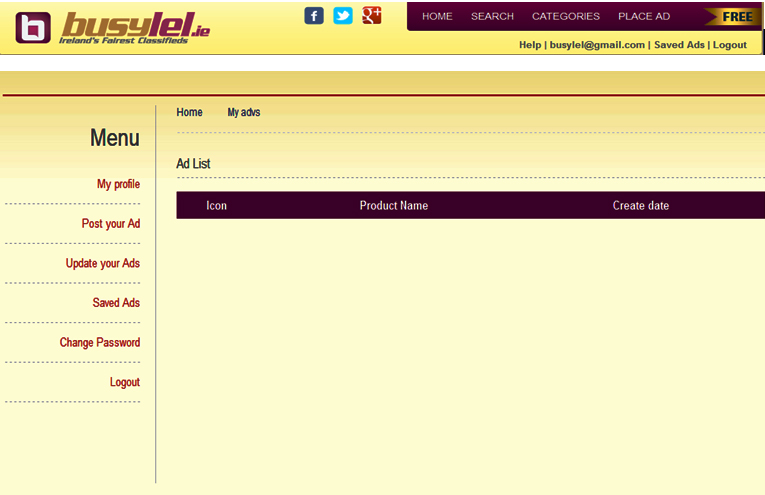
Managing your busylel.ie Ads
Now that you have an account on busylel.ie you can do so much in one place to manage all your various ads and scenarios on busylel.ie. Here is a list of your options in an account overview:
Pick up a holding ad that you didn’t finish with agreement on.
You will see all your current ads on the site.
Here you can get quick links to Edit Highlight, Hold, Mark as sold or delete your ads.
You can manage all your ads easily whether it's to re-list (re publish) them should the sale not go through or delete if you so please.
Then finally, see all your saved ads on the site
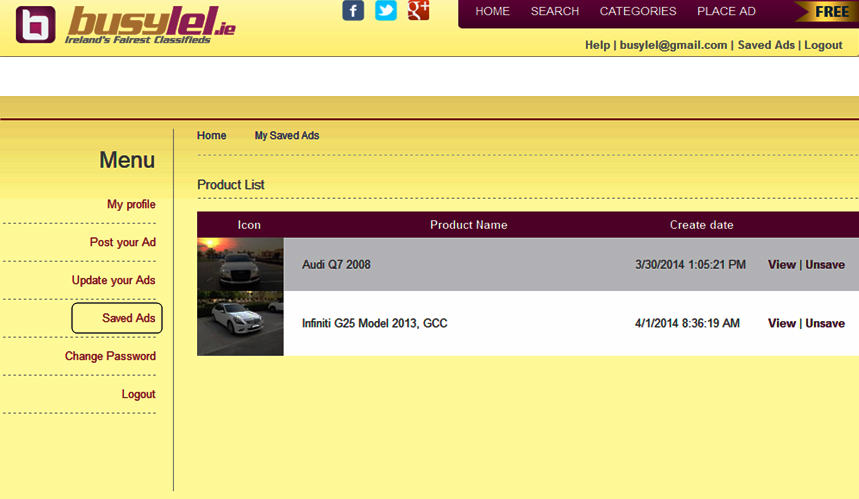
Pick up a holding ad that you didn’t finish with agreement on.
You will see all your current ads on the site.
Here you can get quick links to Edit Highlight, Hold, Mark as sold or delete your ads.
You can manage all your ads easily whether it's to re-list (re publish) them should the sale not go through or delete if you so please.
Then finally, see all your saved ads on the site
How do I Highlight my Ads (E.g. Cars, Trucks/machineries)
Highlight ads are premium images and texts which appears on the Top of the page of the content area of the main category listing pages and all of its subcategories. Your ad will rotate in the Highlight space above all the regular ads every time the page is refreshed.
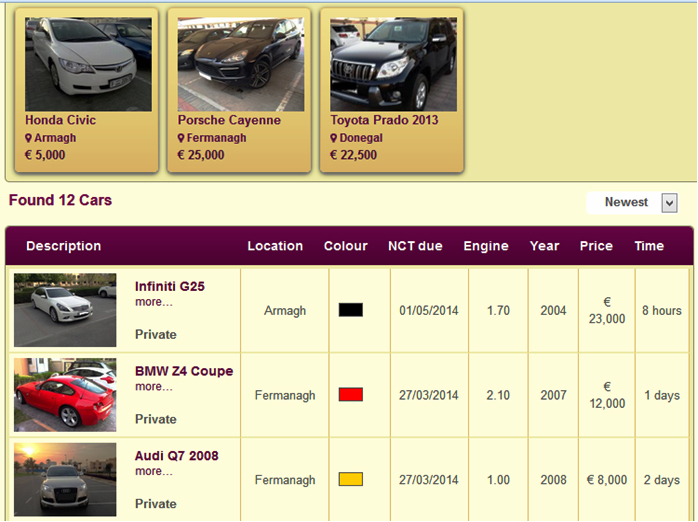
Car Highlight Place price is €10 for 5 days
Make sure you have good clear photograph of the item that you're selling
Set selling price
Follow the steps through the forms
Make sure you have good clear photograph of the item that you're selling
Set selling price
Follow the steps through the forms
Place an ad
To place an ad on busylel.ie:
Go to busylel.ie and click on Place ad at the right top of the page:

You must log into your account before placing an Ad.
Learn more on how to create an account
Choose type of ad for sale
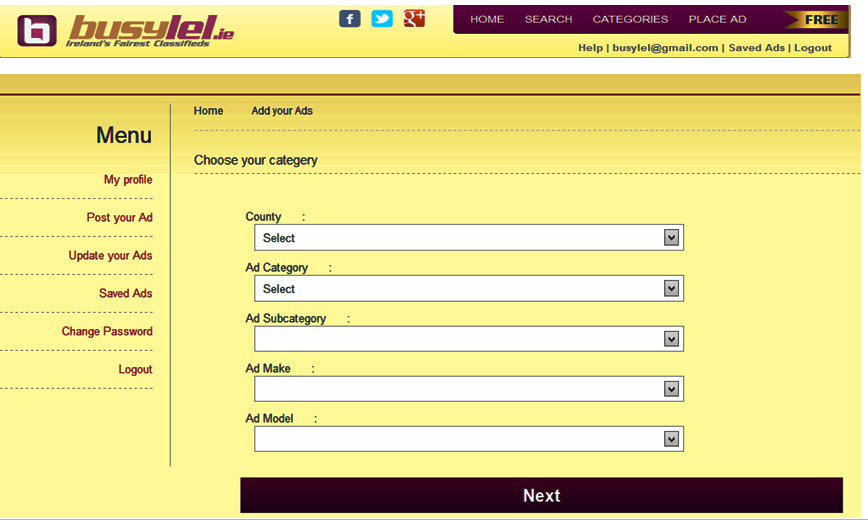
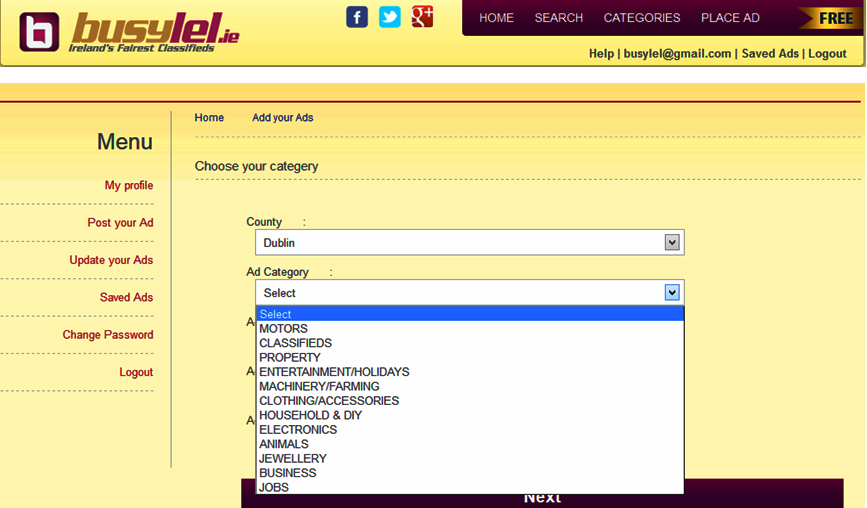
Select your county and Category in which you would like to place an ad
Feed details of your ad.(example in car section)
Ad Information
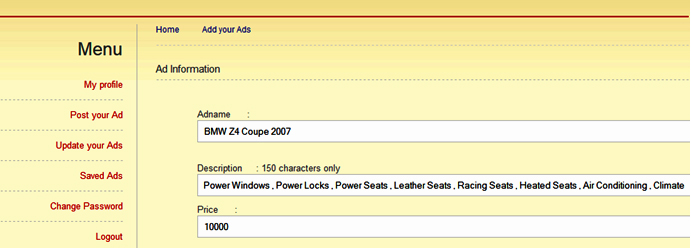
Ad Specification
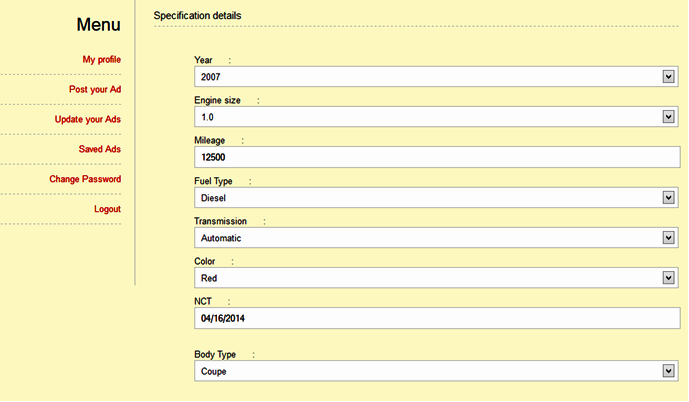
Upload picture or video of the ad.
Uploading Ad Pictures (click on browse to select the required picture from your computer)
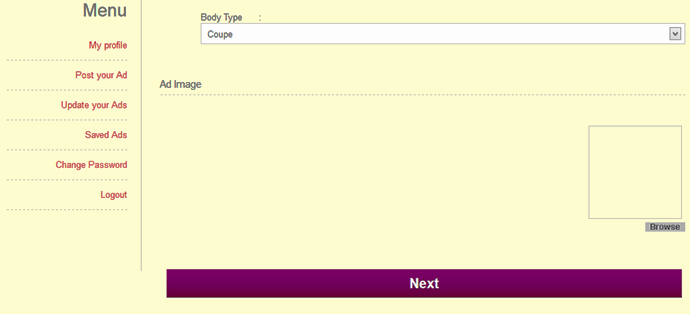
Adding more pictures (By pressing Ctrl+ you can add multiple picture at a time)
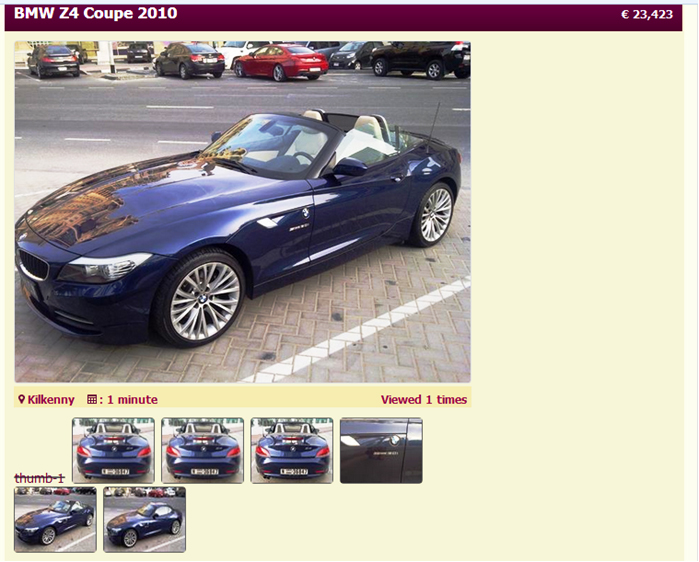
 You can preview your ad how it looks in the web site before finishing posting your ad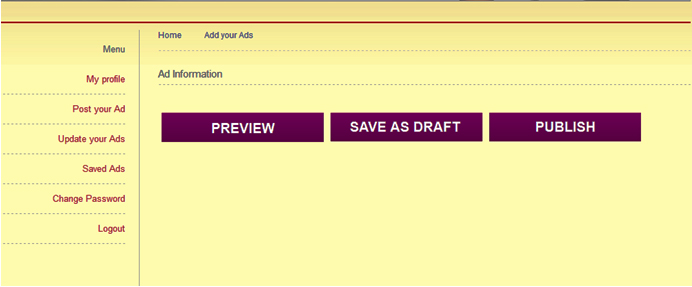
When you click Ad Preview you will see how your Ad will look in our site
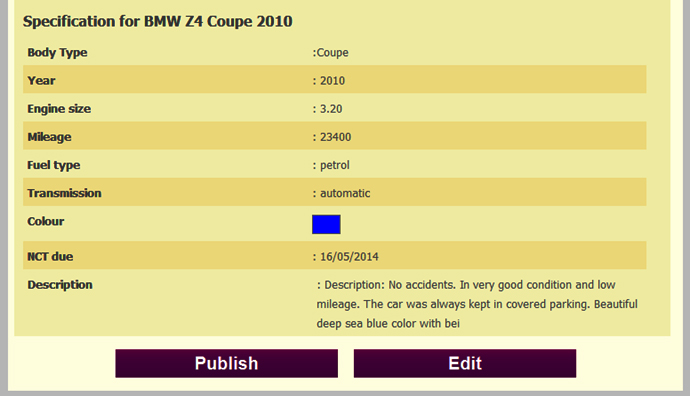 Payment for the ad.(One clickable box to highlight your ad and one box to go for free)
Read more about advertising charges (link to advertising charges on payment section)
Pay for your ad
How to pay for your ad:
It is easy with busylel.ie to make payments by your choice of payment methods.Your advert will be for Two Months starting from when you place your advertisement.
To know more about advertising charges click here (link of payment section)
You can pay through your mobile phone, online with your debit/credit card or by using a PayPal account.
We will only ask you to pay for your ad once we know you’re happy with all the details you’ve entered and have gone through all the processes of placing an ad.
To pay for your highlighted ad:
Click on Place Ad which is in each category on the home page, on the top right corner of every page or on the side panel of the home page were you will see highlight your ad.
The standard advert is free of charge to the public.
Follow the step-by-step instructions and enter all the details to be included in your ad.
On the last page you will be given a choice of payment options.
You can choose to pay by mobile phone which is the most popular choice by our customers.
Your mobile phone company may add extra network charges.
For the exact cost please check with your network provider. Alternatively you can check the premium rate fees page in our help section.
We also have support for all major credit and debit cards and internet payment services such as PayPal. These are the options available for payments:
Form of payment (picture)
Holding an Ad
In your account you have an ad on busylel.ie and didn't complete your transaction with the buyer or are waiting to receive your money then you may Hold your ad so that you don't receive any calls from other customers, republish your ad or delete in the future.
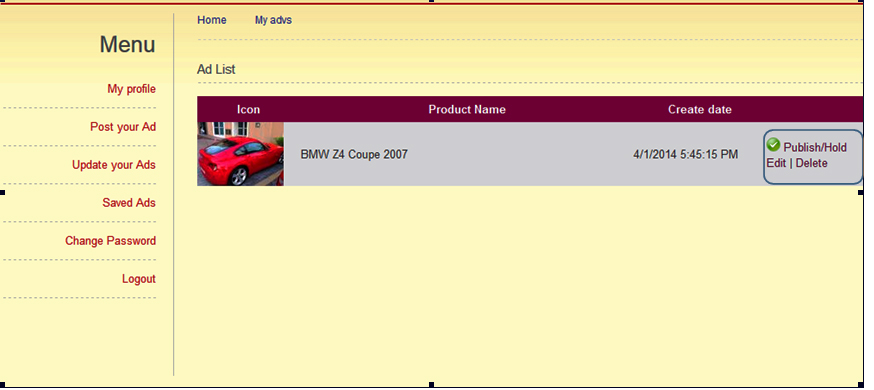
You can re list your ad or delete in the future.
You can re list your ad or delete in the future.
Upload Photos
How to upload photos with busylel.ie via pc
Save your photos on a computer, which can then be taken from your camera, mobile phone or Tablet.
Go to home page of busylel.ie, click place an ad
Follow the instruction until you get to photos upload page
Click on browse and upload picture (max 10 photos)
Once you've selected your pictures press open
The status of the upload will show beside the pictures
You can upload more than picture at one time by selecting Ctrl+
Save your photos on a computer, which can then be taken from your camera, mobile phone or Tablet.
Go to home page of busylel.ie, click place an ad
Follow the instruction until you get to photos upload page
Click on browse and upload picture (max 10 photos)
Once you've selected your pictures press open
The status of the upload will show beside the pictures
Note:
When you're uploading photos, make sure that they are in the file format: .jpg, .gif, or .pngYou can upload more than picture at one time by selecting Ctrl+
Upload photos from a mobile phone
If you have taken photos with your mobile phone, you can send the photos, via MMS, straight to your ad.
When you place a new ad or edit an existing ad, go to the Add Photos & Video page.
Click on the link Upload photos from your mobile phone with MMS to see the easy step-by-step instructions.
Then you will insert the phone number of the handset you’ll be sending the photos from.
When you place a new ad or edit an existing ad, go to the Add Photos & Video page.
Click on the link Upload photos from your mobile phone with MMS to see the easy step-by-step instructions.
Then you will insert the phone number of the handset you’ll be sending the photos from.
Upload a video
To upload a video into your ad:
Upload the video to YouTube (full instructions for doing so and creating an account are available at YouTube.com)Select the video URL at the top of the page, it should look like this:
Www YouTube.com/watchv=abc1234
Select this and copy it using Ctrl-C.
Go to the busylel.ie website and click on Place Ad or Edit ad.
Follow the instruction to the Add Photos & Video
Go to the 'copy video URL' box and paste your video URL using Ctrl-V.
When you finish your ad, your video will be included.
If you have problems uploading a video, ensure the URL is correctly typed and make sure the video privacy settings are set to 'public' on YouTube.
Please bear in mind you should have a photo on your ad also.
If you do not include a main photo it will not appear with an image on the search page.
Here is an example of an ad with a video – you can see the main photo is what displays on the search page and the “play button” in the photo shows that there is also a video available in this ad.
Uploading a CV:
Save your file on your computer
Go to home page of busylel.ie, click place an ad
Select category 'jobs' to enable CV upload option.
Follow the instruction to upload page
Click on browse and the upload button
Once you've selected your file press open
The status of the upload will show beside the file
Note. Please make sure your CV is in the file format: .doc, docx or .pdf If it's not in one of these formats, you will get an error when you try to send it.
Make sure that your CV is not too large (Ideally 300kb or below).
You can easily reduce the file size by removing images (or resizing the images within the CV).
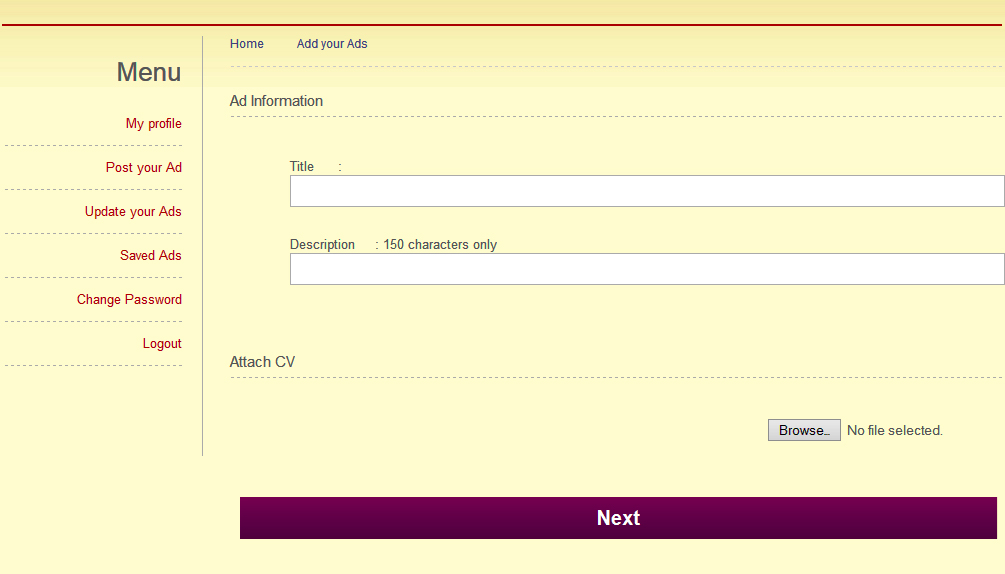
Go to home page of busylel.ie, click place an ad
Select category 'jobs' to enable CV upload option.
Follow the instruction to upload page
Click on browse and the upload button
Once you've selected your file press open
The status of the upload will show beside the file
Note. Please make sure your CV is in the file format: .doc, docx or .pdf If it's not in one of these formats, you will get an error when you try to send it.
Make sure that your CV is not too large (Ideally 300kb or below).
You can easily reduce the file size by removing images (or resizing the images within the CV).
Highlight/Renew your Ad
If you want to Highlight/renew your ad on busylel.ie for another 2 Months just follow these instructions:
Access your ads via busylel.ie once you are logged into your account, simply click “placed ads” in the toolbar at the top of the page.
When in your account follow the link to view your placed ads, you can edit and Highlight your ads from there.
Follow the step-by-step instructions to pay for your highlight renewal. Please note, feel free to edit any of the content in your advert however if you want to move it back to the top of the search pages, go to edit ad or Highlight ad on the home page to make your ad a highlighted ad. This will incur a small fee. (full details on our pricing page link)
Edit or remove an ad
You can edit your advertisement at any time if you need to add additional information as often as you like so feel free to do so.
You can edit or update your ad.
By logging into your account on “busylel.ie” from the toolbar at the top of the page. When viewing your account page in the buttons on the left you should see: Update or edit your Ad
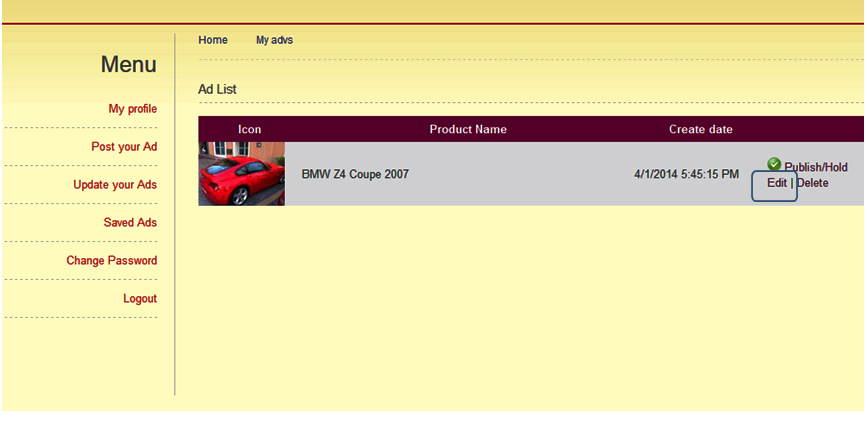 Then click on Edit to update your ad.
How do I change my account password on busylel.ie?
You can change your account password from your Account Settings page.
To access your Account Settings page, make sure you are logged into your busylel.ie account.
Click on the account Settings under your account link on the top right of the page.

From this page you can change your password
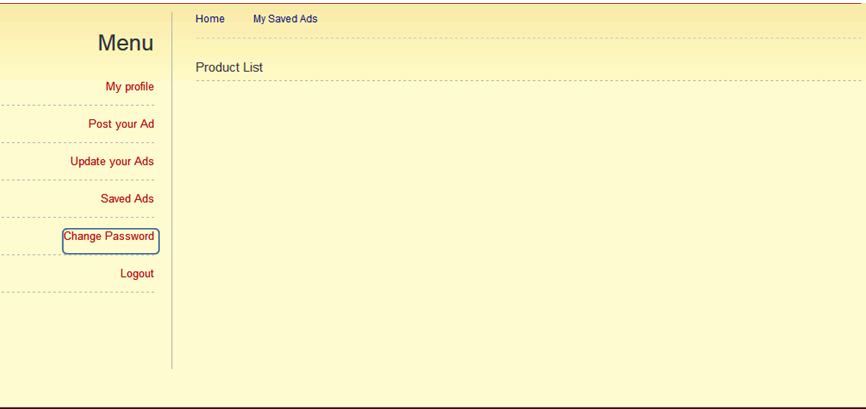 Click on the "change password" link next to password and follow the simple steps.
If you need further assistance you may always contact our support team on support@busylel.ie
Report an Ad/scam/Fraud
There are many different reasons to report an advert scam or fraud and we will be more than happy to assist you so please report anything that seems suspicious to you.
- Spam
- Fraud
- Wrongly Categorised
- Repetitive Listing
- Wrong/Invalid address
To report any of the above or other cases follow the instructions below:
To report an ad:
Click on the ad on which you need to report
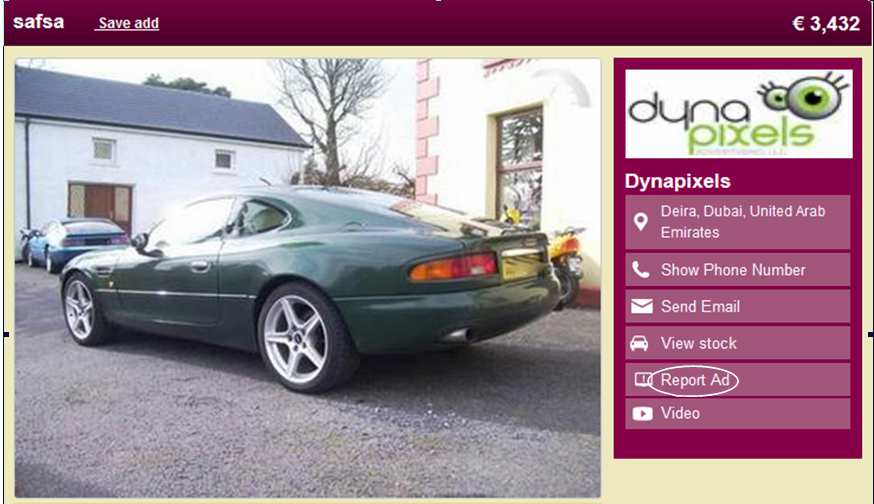 Click on Report Ad right below the contact detail of the advertiser (as highlighted in the picture above)
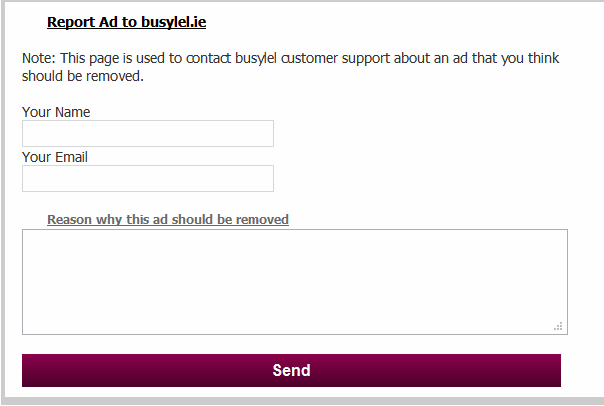 Explain to us why you are reporting this ad and exactly what your issues are with it.
Include a valid email address so that we can reply to you if necessary. Click on Send.
Subscribe to email notifications of new ads
If you want us to keep you updated on new ads that match what you're interested in then we will contacted you by email.
Follow the steps:
Search for the item of interest on the busylel.ie website.
Click on the Subscribe link found at the top and bottom of each section page
Fill out the form and follow the instructions to subscribe to regular updates.
You will receive an email the next day of your subscription and please note that you can unsubscribe at any time by clicking on the unsubscribe link in the email.
Privacy: We will only use your email address for the purpose of this subscription.
Banner Advertising Enquiries
Companies can advertise on our banners or side panels of our home and subcategory pages to get more of our users.
This is the best and most cost effective way of getting your company known by our users.
You can advertise a Banner on any category section such as (Motors, Electronics, Property or Machinery etc.)
Contact us
For further details please contact us on sales@busylel.ieHighlight Ads – The Basics
You can now buy a Highlight Place if you have an active advert with us.
To learn more about the pricing of Highlight Ads click here.
Highlight ads are shown above the ad search page in the sections listed above.
This rotates six ads each time you click on another item which will increase views to your ads displayed in the Highlight.
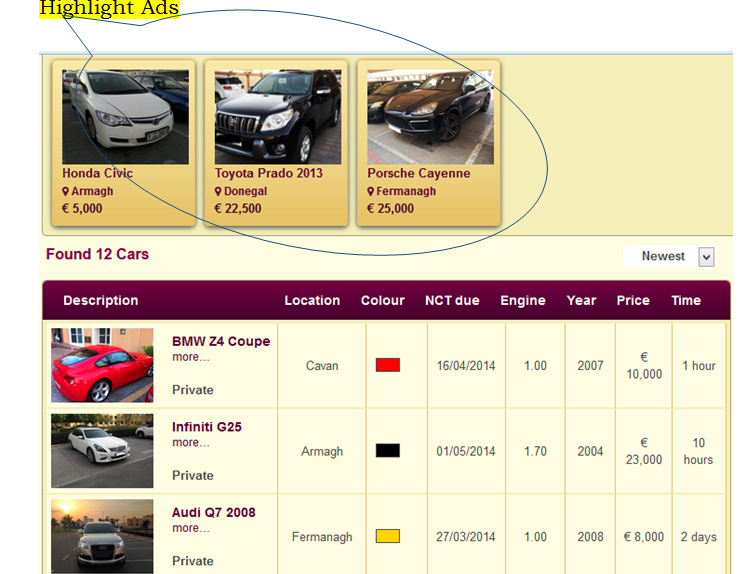
Highlight Ads
How do I buy a Highlight Place? You can select the option Highlight your ad from the home page, from your busylel account or alternatively when your busylel Ad is published you will receive a confirmation email with an option to Highlight.
Please note that any ad that you choose to “Highlight” will be included on the busylel site as normal in addition to your Highlight Place so you effectively get two places where your ad will be shown.
What kind of ads are suitable for Highlight Places?
Highlight Ads are a premium position so your ad needs to look impressive to be allowed in the Highlight Place.
Make sure your Highlight gets published & stays published:
Ads must display a realistic price.
You need to show a photo of the exact item that is for sale in your Highlight Place.
Ads without photos are not allowed in the Highlight Place
Ads with photos that are overwritten with logos or text are subject to review
Your Highlight Place photo must clearly show a single item for sale.
If you’re a trader please make sure you only show a photo of one specific item that is for sale in your Highlight Place.
Friendly photos only please.
Only ads that are strictly suited to the category are allowed to show in the Highlight Place e.g. in the Motor section only motor vehicles should appear etc.
If you have sold your item you’ll need to remove your ad from the Highlight Place by logging in to your account.
Highlight Places are shown on a random rotation bases and will remain at the top of the list ensuring the most amount of users will see them.
